Use this processor when the workflow must interact with an external API, letting you send the request, parse the response, and map the returned data onto Profile attributes.
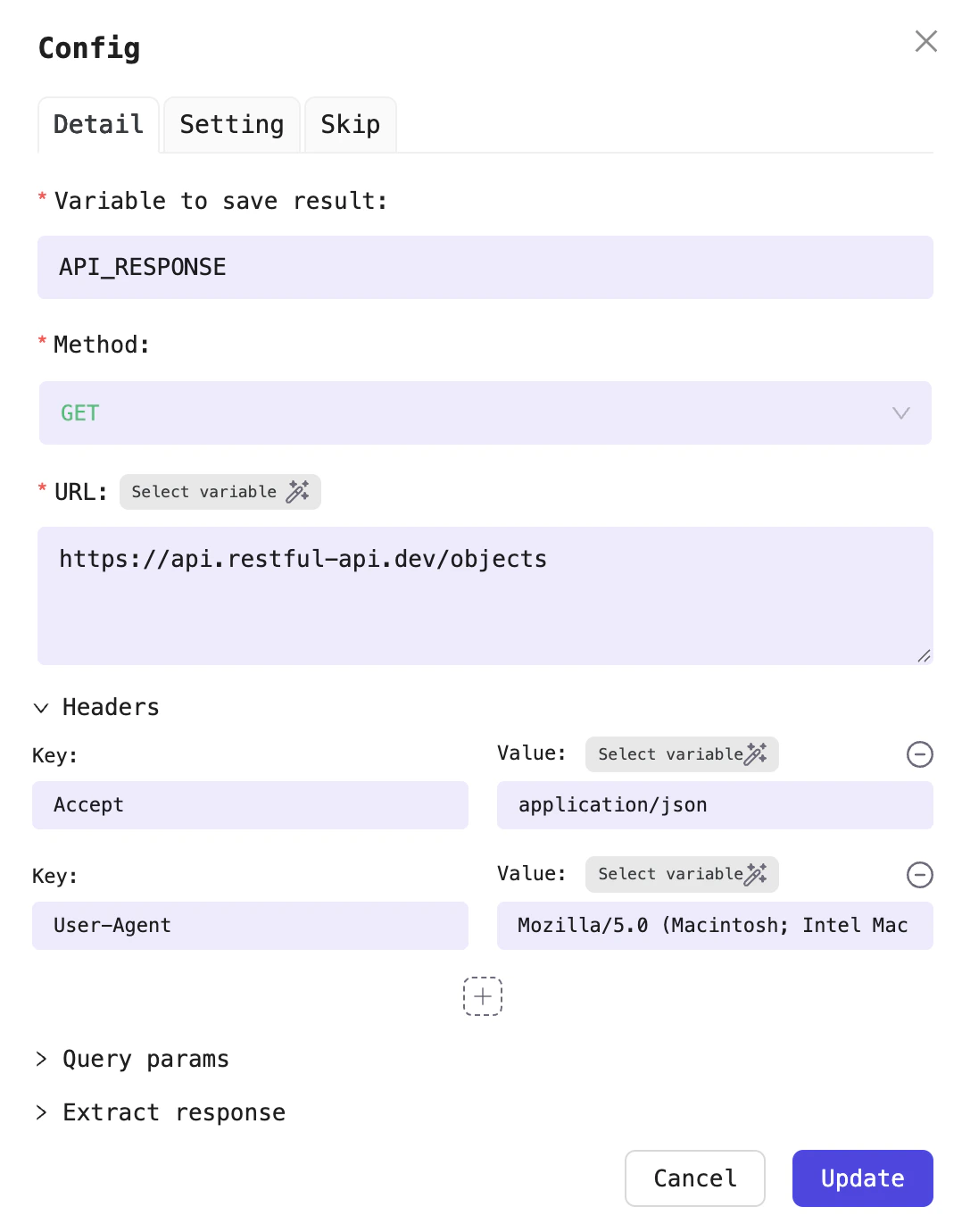
Configure the API request processor

Configure the API request processor

In this example the processor performs a GET request to https://api.restful-api.dev/objects and saves the payload in API_RESPONSE
The result is stored in the profile variable API_RESPONSE

The result is stored in the profile variable API_RESPONSE

Configuration fields

Field nameRequired?Detail
Variable to save resultYesThis processor returns the API response, so pick a variable to capture it. For example API_RESPONSE
MethodYesSelect the method: GET, POST, PUT, DELETE
URLYesEndpoint of API
HeaderAPI request headers
QueryNoAPI query parameters
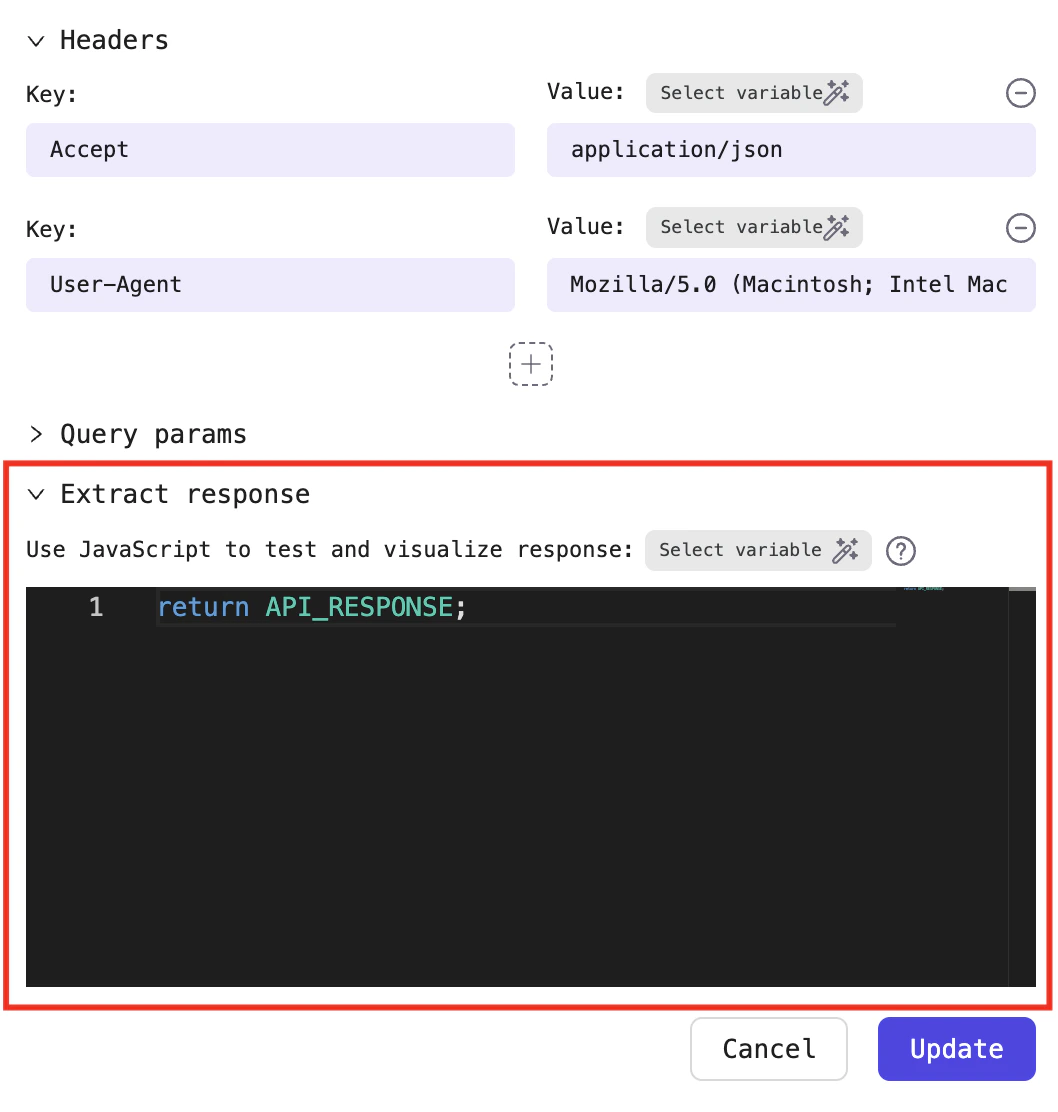
Extract responseUse this area to parse, calculate, or extract specific fields from the API response, the operations work just like JavaScript

Extract response

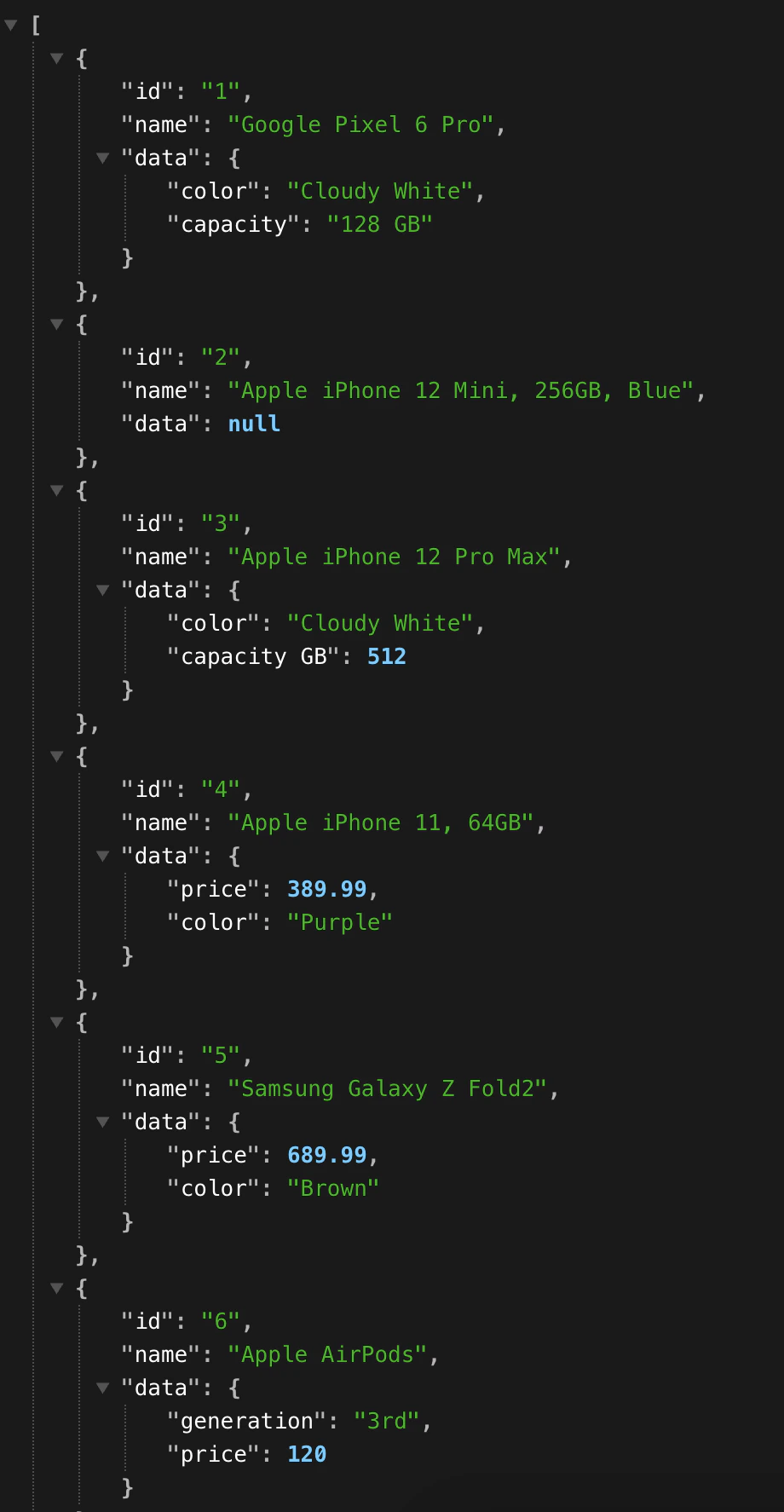
In this example, the API response from https://api.restful-api.dev/objects looks like this:
API response

API response

To fetch the name of the item whose id is 2, write JavaScript that extracts that field from the response:
Extract the response with JavaScript code

Extract the response with JavaScript code

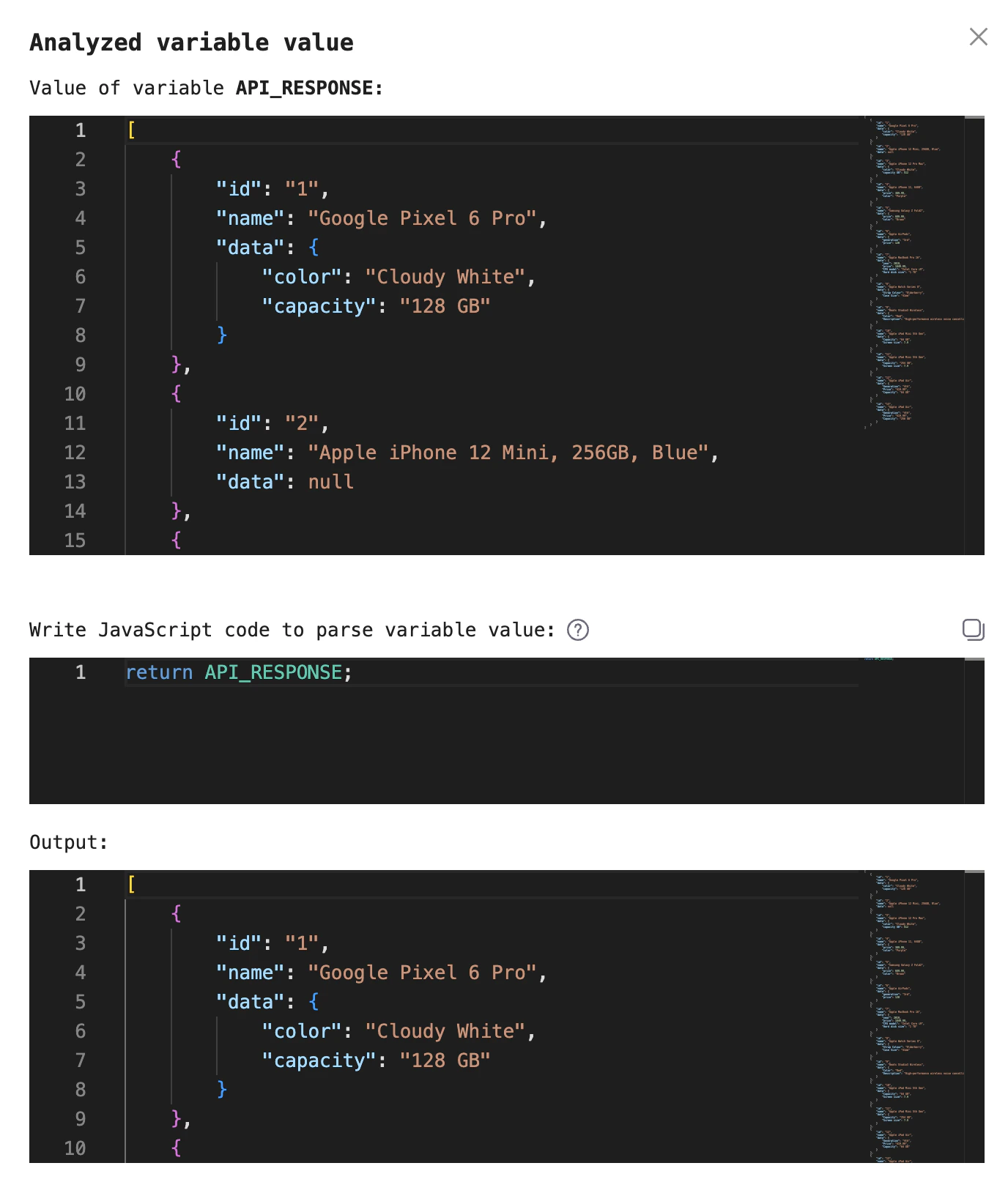
When you write JavaScript in the Extract Response section, first run the workflow once, open the queue to inspect the API response, then click Analyze variable.
Analyze the API response

Analyze the API response

A popup like this appears afterwards:
Review the API response details

Review the API response details

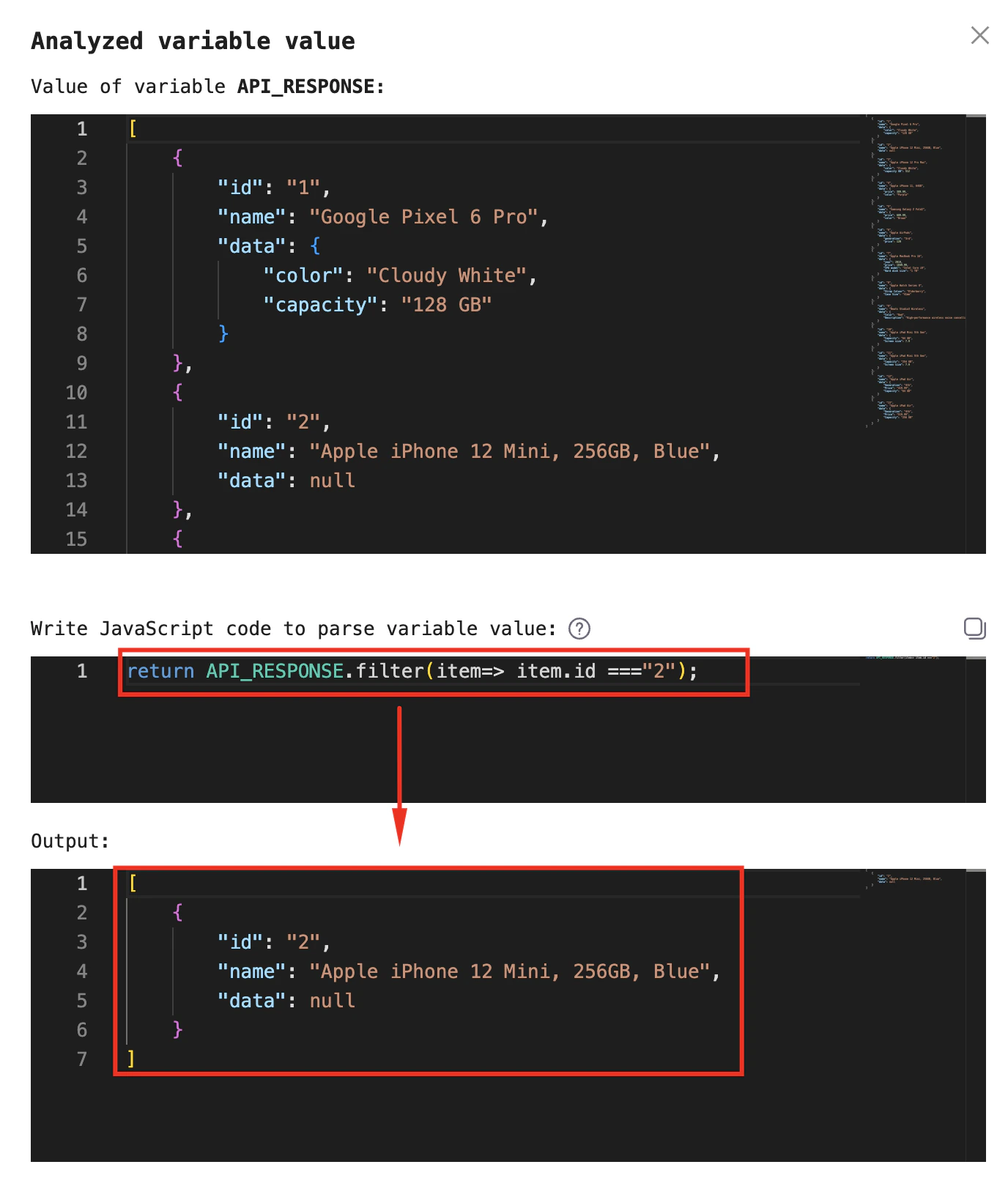
Next, tweak the JavaScript to confirm the result meets your needs:
Grab the item whose id equals 2

Use this code to fetch the item whose id is 2:
return API_RESPONSE.filter((item) => item.id === "2");
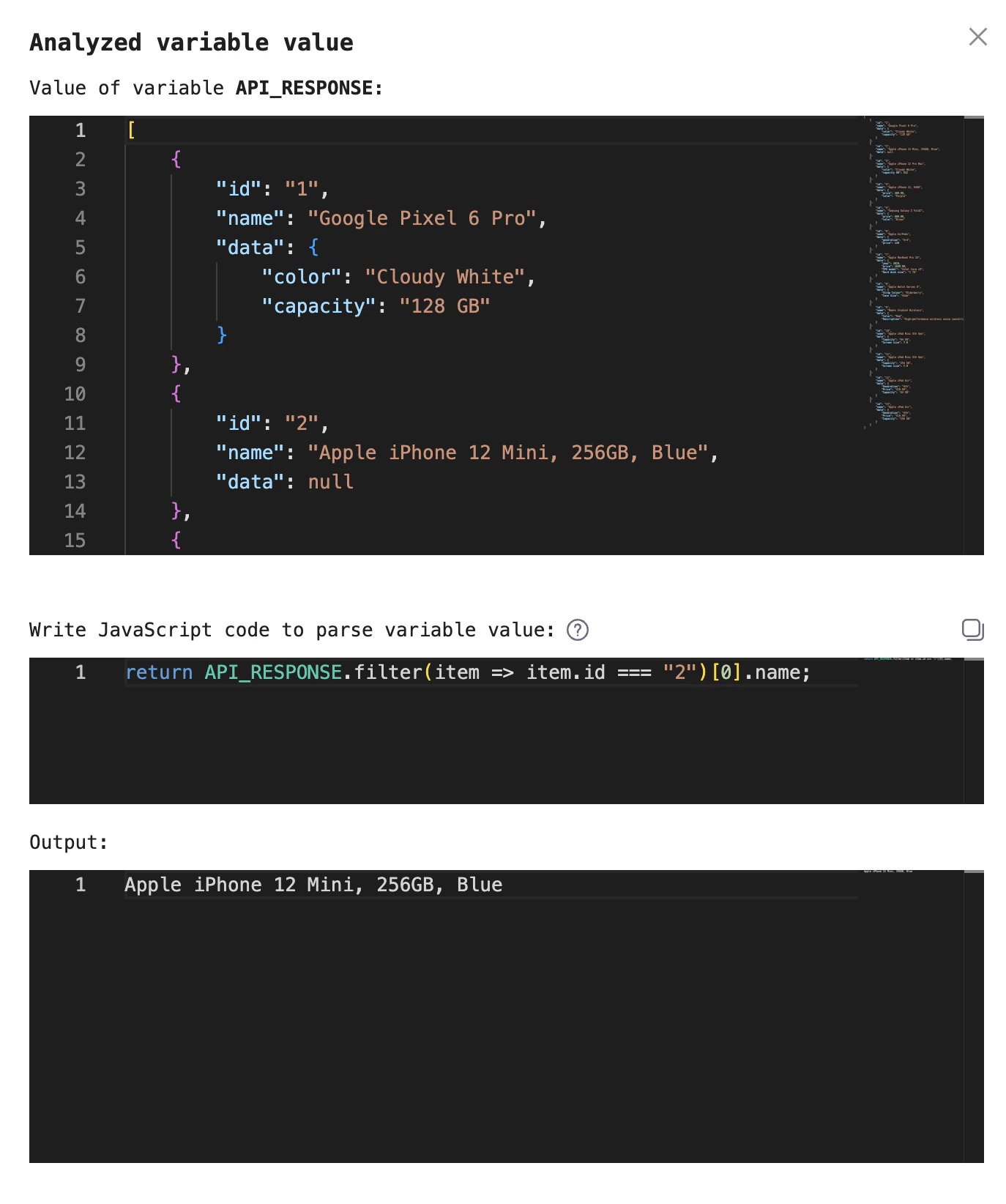
Next, adjust the JavaScript like this to capture the name of the item with id is 2:
return API_RESPONSE.filter((item) => item.id === "2")[0].name;
Retrieve the name of the item whose id is 2

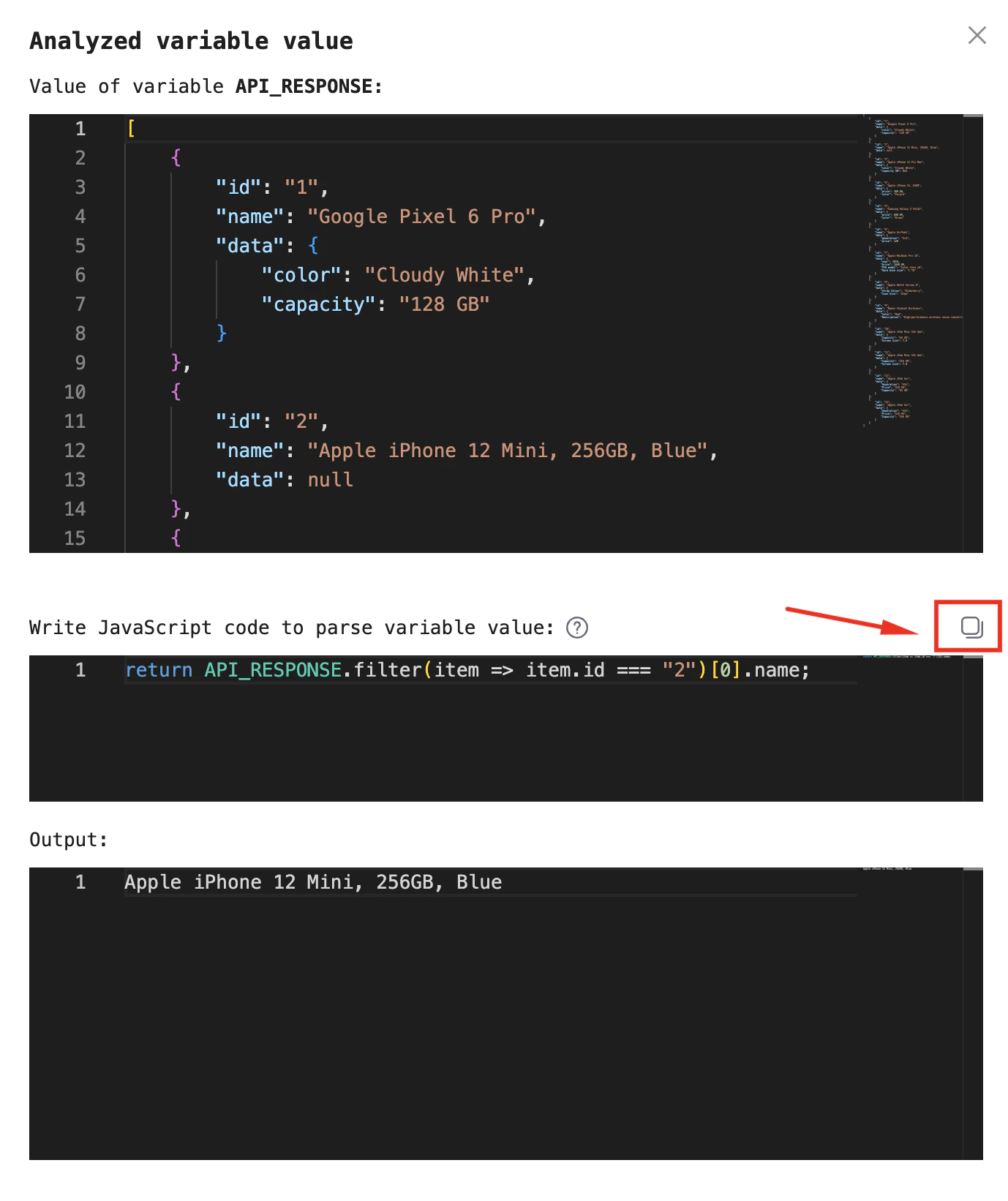
Finally, once you have the result you want, copy that code and paste it into the processor’s main configuration:
Copy code

Copy code

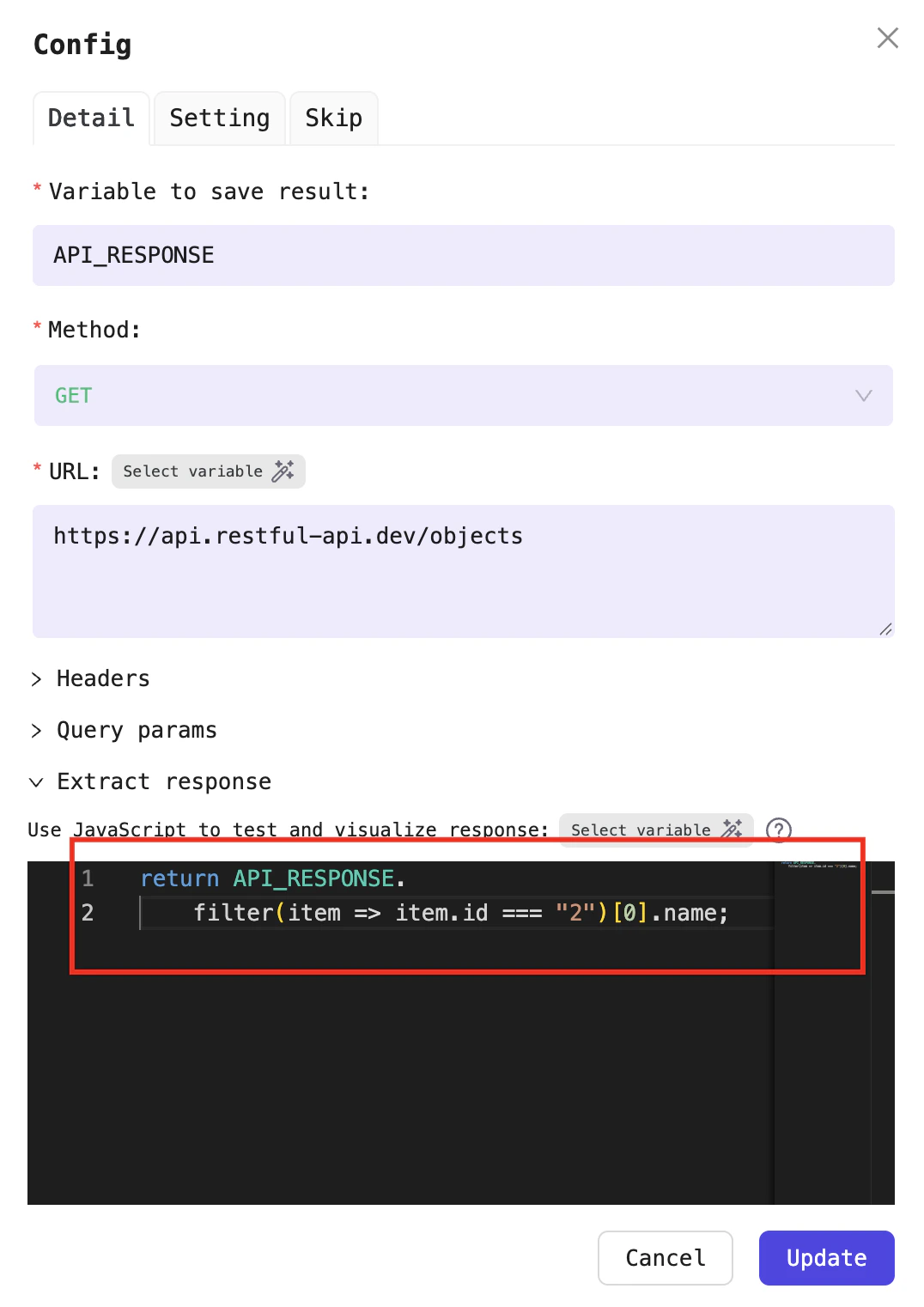
The finished JavaScript snippet

The finished JavaScript snippet

The returned value now matches your intent: the name of the item with id is 2 :
The output now gives you the name of the item with id is 2