

Get wallet balance processor finishes and you want to wait another 3 seconds before running the Check balance processor. Once the profile completes the wallet balance processor, it moves into the queue and waits there for 3 seconds. When that time is up, the profile proceeds to the Check balance processor to continue.
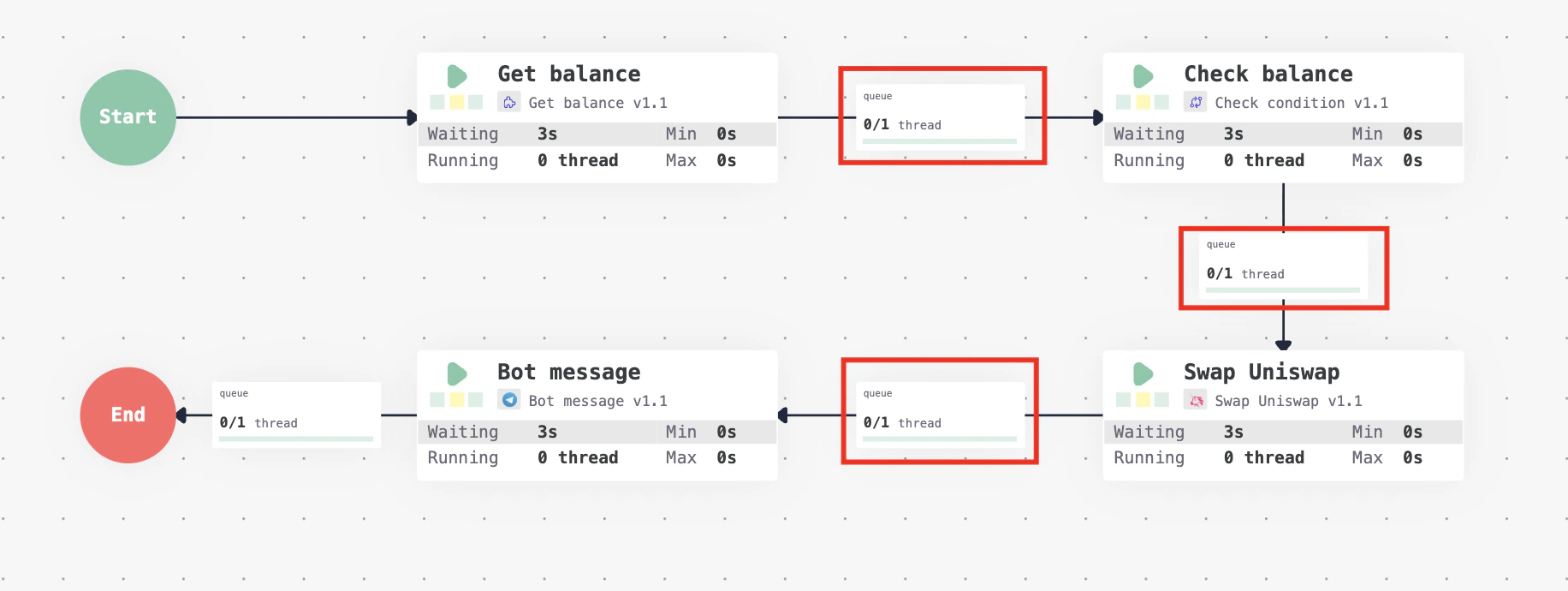
Queue between processors
View queue details
To view the details of a queue, left-click the queue and chooseView queue.
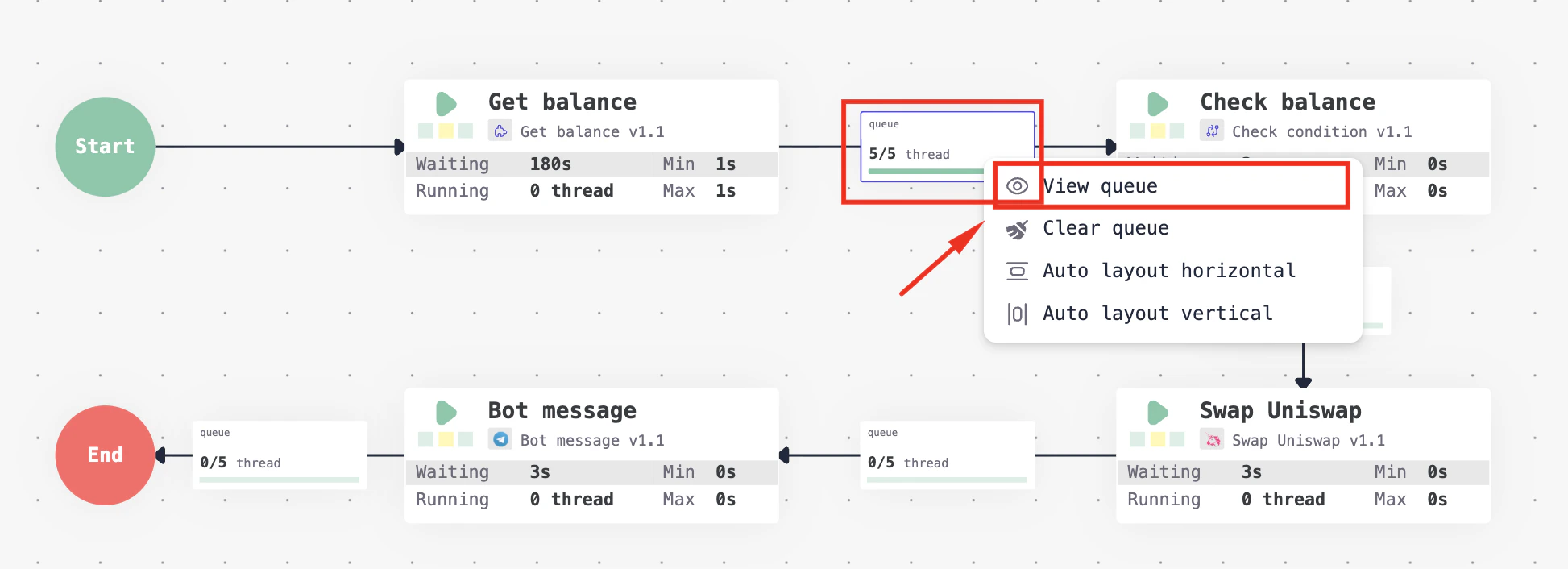
View queue details
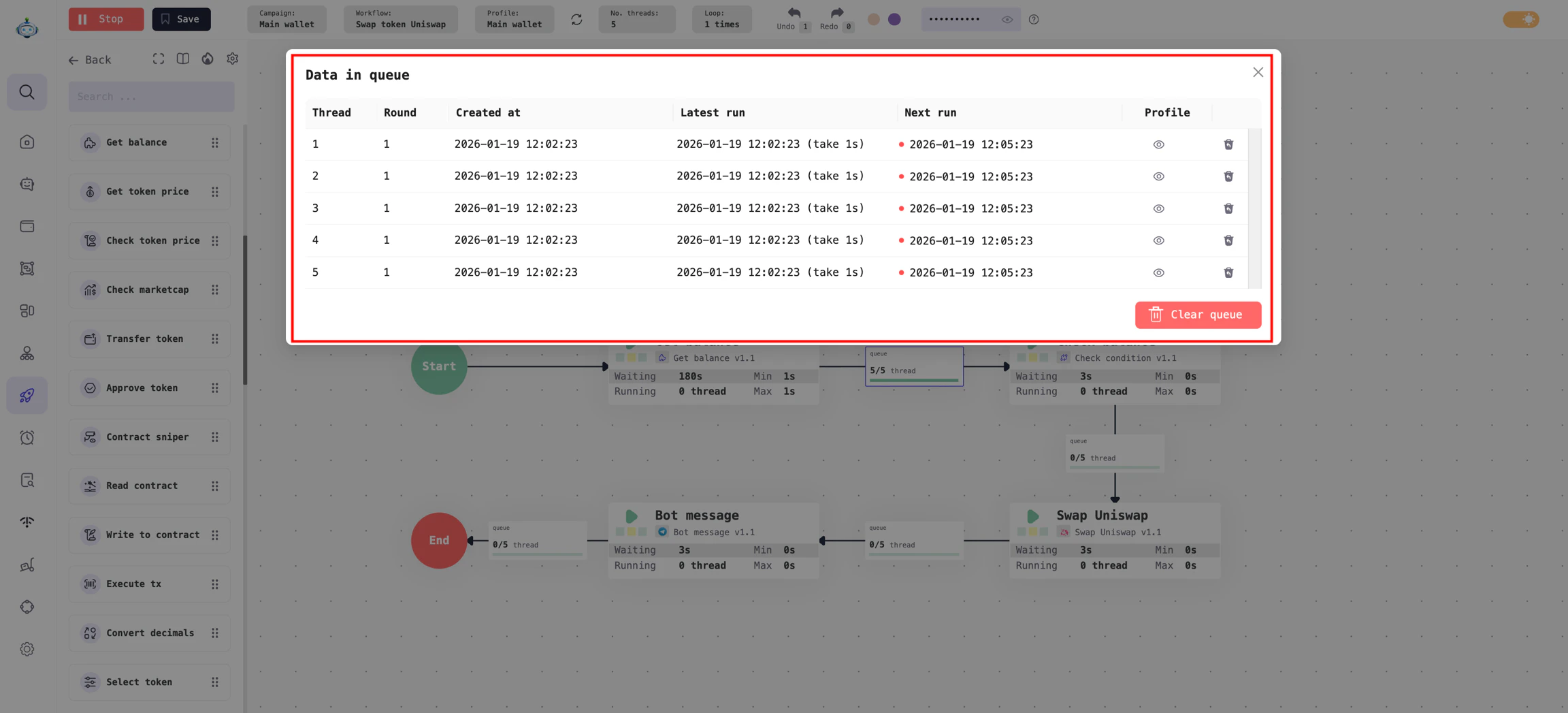
Details on the profiles currently running in the queue
View profile details
To see the details for any profile in the queue, hover your mouse over theProfile column.
As each processor runs, the variables attached to the Profile can change based on the logic of your workflow. To track those value changes or to debug, you can inspect the variables directly in the queue.
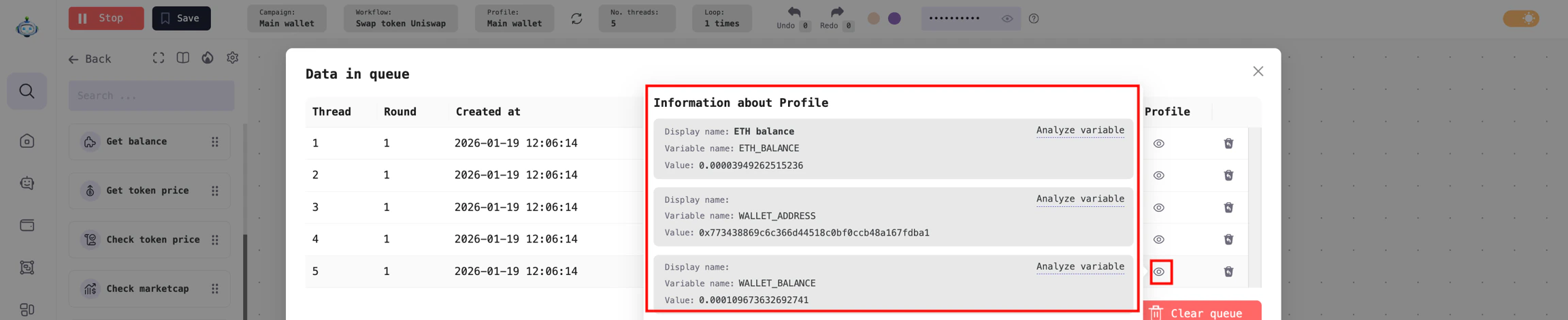
View Profile detail in the queue